The scan follows now. Please note that you can create a scheduler that does these tasks automatically, see 6.9.5 Automation / Time Scheduling.
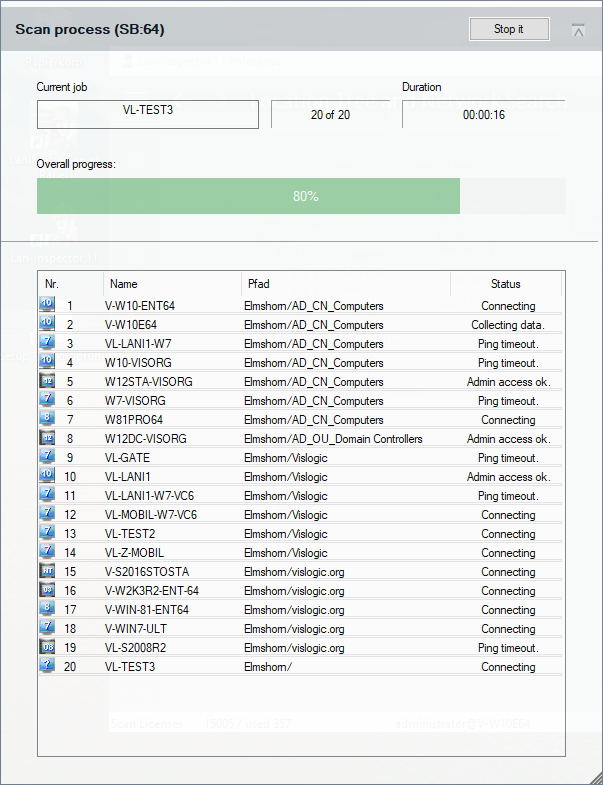
Select a branch of the location tree and click on the button „Scan branch“. This causes the system to scan all PCs that you have assigned to this branch. The system will also scan all objects of sub-branches. The following dialog displays the state of each scan thread:
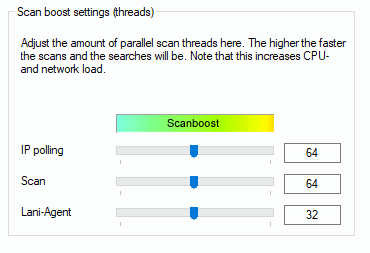
„SB: 64“ in this case means that the scan engine uses up to 64 parallel scan threads to accelerate the scan procedure in larger networks. You can scale the network load in the search&scan settings (see Fehler! Verweisquelle konnte nicht gefunden werden. Fehler! Verweisquelle konnte nicht gefunden werden., “Scanboost”):
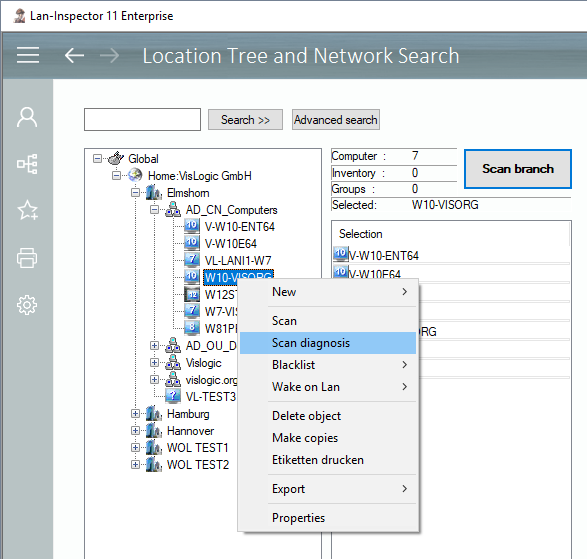
If there were problems during the scan (for example “check ScanDiag“), you can leave the window and call up the scan diagnosis via right-click menu for the corresponding PC, see 6.9.7.2 Lani Agent Scan Diagnostics.
Needless to say, it is essential to repeat the process of searching and scanning the network frequently in order to collect all devices and keep their data up to date. To make sure you gather all objects, you should consider to combine different methods of discovering the inventory (for example ”Scan at logon”, 6.9.3 Scan on Logon / Script Generator. In addition, the process of scanning may be most efficient if you enable automatization, see 6.9.5 Automation / Time Scheduling.