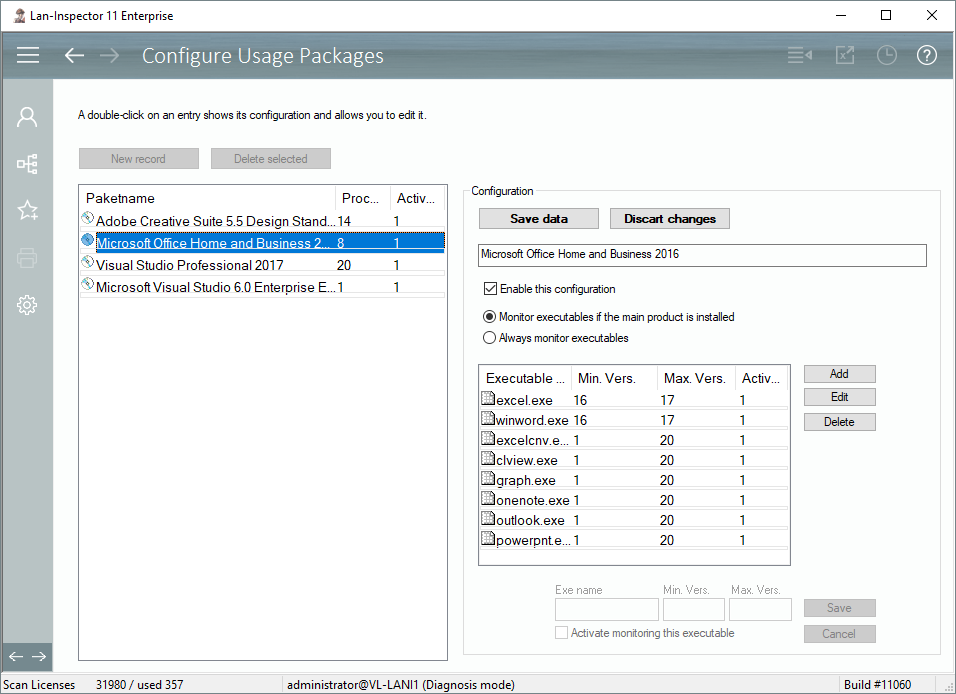
Every package starts with its name. Although you can choose any name you want, it is best to use those product names the Lan-Inspector finds in the network and offers in the catalogue. You can modify every package afterwards, but keep in mind that any submitted configuration will expire if you change something in one of them.
You can double-click on an entry to modify it, delete an entry you have selected before or you click on “New record” to create a new package.
1. Click on “New record“ in order to add a new one to the list.
2. The Lan-Inspector product catalogue appears with a slight change. If you have scanned the pcs with software, it is likely that the scanner has collected all exe files that belong to the corresponding products. The products with known exe-files are marked with “exe map ready” followed by the number of exes found.
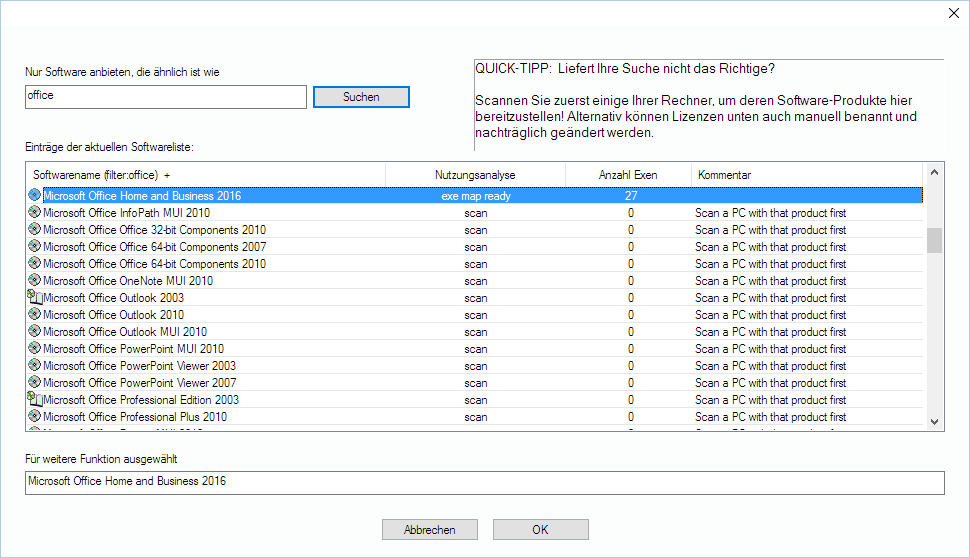
3. Choose a product and click on “OK“.
4. If the product has no exe files yet, the Lan-Inspector searches for the list of PCs that have the software installed. It pings them and tries to rescan for the exe files.
5. If no exe files can be found or if all PCs are not online, you can continue and enter exe files manually.
6. Please have a look at the exes before you save the configuration: Each exe takes a quantum of monitoring resources on the clients. Focus on the important exe files that are significant for the product. You should delete all other.
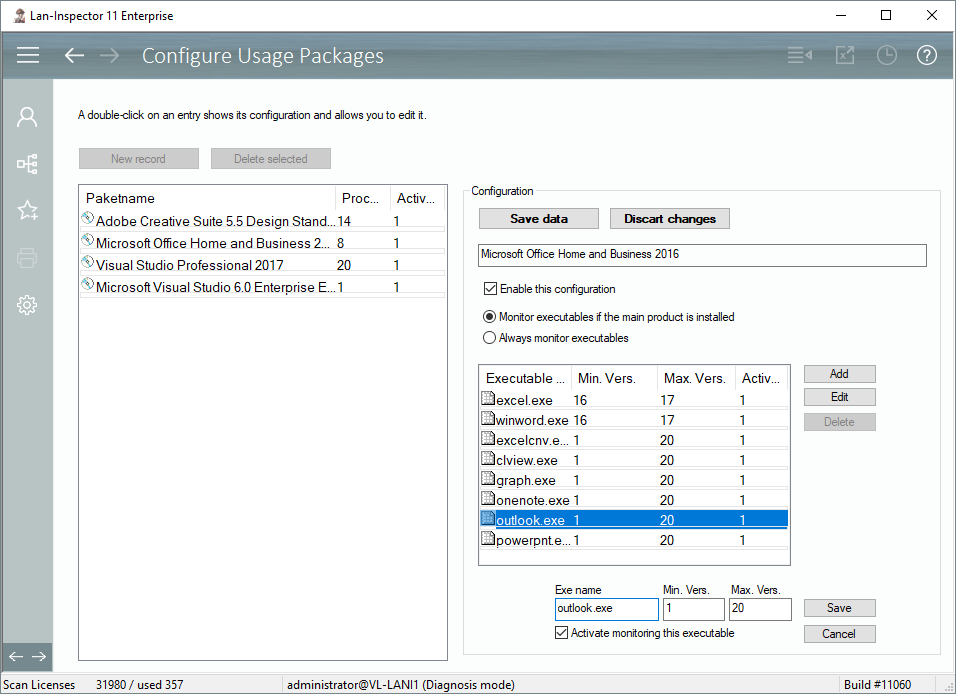
7. You can decide for each exe if it is supposed to be monitored.
8. “Monitor executables if the main product is installed“ means that the exe files will only be monitored if the product is really installed on the computer. If you choose to “Always monitor executables“ each exe file will be monitored even if the main product is not installed. The second option is for products without a real installation (portable apps, or game-exes).
9. Activate the package and “Save Data”.