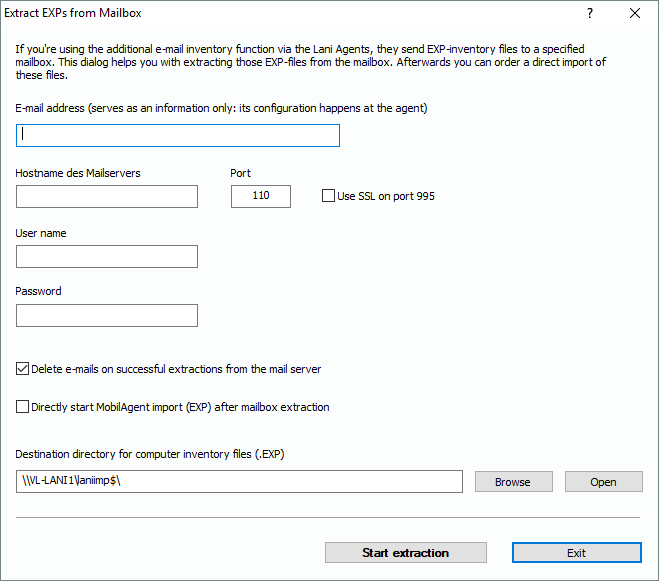
Assuming, you have field notebooks or similar island systems running the e-mail Lan-Inspector Agent (see 8.1.1 Inventory via E-Mail Configuration), the EXP files, including the inventory data, will drop into the specified mailbox. The Lan-Inspector can directly access the destination mailbox in order to extract the EXP files from attachments of the e-Mails. In the next step you can import the EXP files into the data base of inventory.
Using the function tree, choose “Menu: Inventory Management/More/Extract MailboxEXPs“, and open the corresponding dialog. It is not necessary to provide an E-Mail address at this place, because the address of the destination mailbox is configured in the agent’s scripts (see 8.1.1 Inventory via E-Mail Configuration). However, it is recommended for documentation purposes.
Please specify the host name of the mail server with user account and password, additionally the pop3 port which is usually 110. If you want to use SSL/TLS and if you activate the corresponding option, the port will be set to 995 automatically. Using pop3 access, it is necessary to specify user and password. Furthermore, you can activate the option to delete mails after a successful extraction. The folder specified below “Destination directory” will be used to store all extracted EXP files. It makes sense to leave the path with its default value, because this is the folder, EXP files are imported from into the data base. Start the process of extraction by clicking on the button “Start extraction”.
.