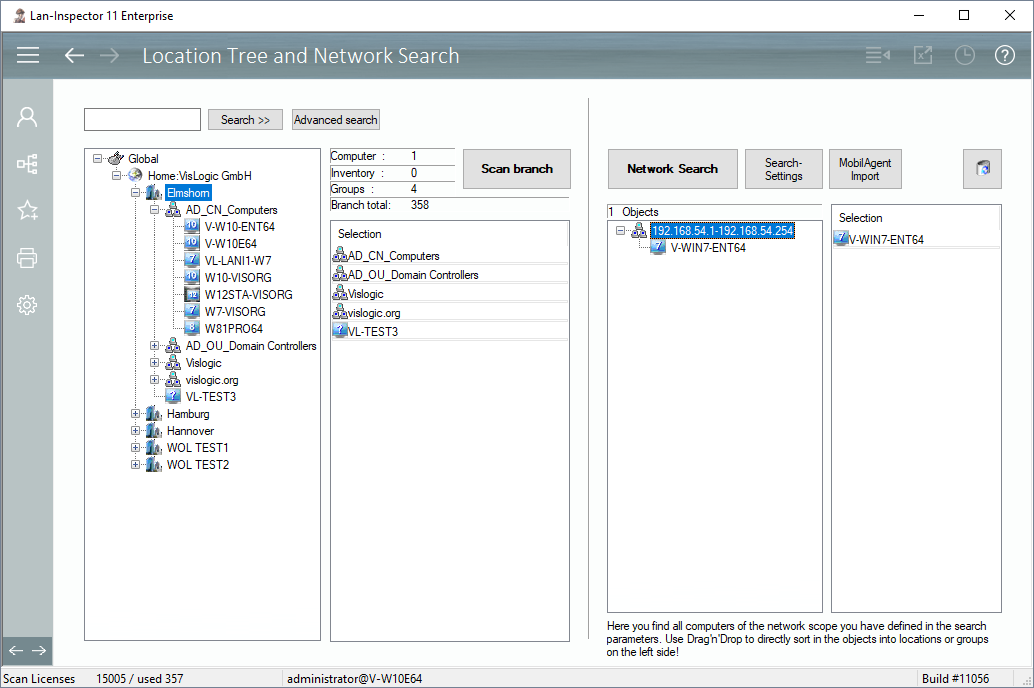
The Lan-Inspector organizes all found network objects in a so called “company tree” which is a structure with cascaded levels corresponding to the company’s locations, groups or sub groups. You can create these groups without limitation.
Open the tree of functions and choose “Inventory Management/Location tree and Network Search” which is described here: 6.3.1 Location Tree and Network Search.
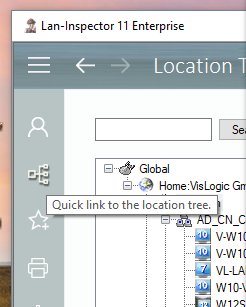
You can quickly reach this very location tree view by clicking the quick link on the left side:
On the left side you see the location tree. To the right you find the pool of found network devices. Click on “Network Search”. The Lan-Inspector will collect devices in your network respecting the current search parameters. If you need to adjust these settings, you can click on the button next to the search button, or you can enter the menu / tree of functions and switch to administration/search and Scan settings: (see Fehler! Verweisquelle konnte nicht gefunden werden. Fehler! Verweisquelle konnte nicht gefunden werden.).
After the search has completed you can now drag devices from the pool from the right side to the left side and drop the objects directly on groups of the location tree. If you have provided sufficient scan licenses to the system, all PCs will be assigned to the chosen group. PLEASE NOTE: These objects haven’t been scanned, yet! This means that no real inventory content has been collected, yet. With sufficient access rights the search usually displays the correct icons already. If you discover icons with “NT” you possibly run into other scan problems caused by insufficient access rights of the service account.