The function “Inventory Management/More/Define Inventory Classes“, see 6.4.5, helps define own classes of inventory. They are like blueprints for multiple instances of the type of object you can add to the data base then. This way, you can add phones, switches, routers, and more to the data base.
This import function can import complete lists of inventory objects. If you call this import process via the tree of functions, the Lan-Inspector shows up with the Import Configuration Manager as described before. You create a new record and click on “Execute / Edit >>”.
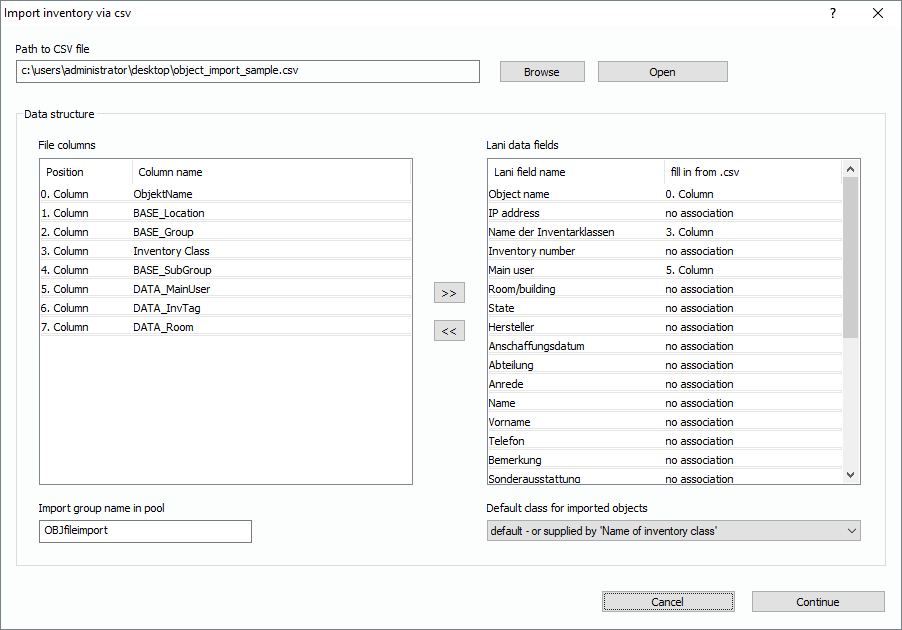
Afterwards you will be prompted to provide the path to the csv file. The function parses the file and shows all columns it has found. Now, you can define the association of columns like described before.
You also specify the name of the group in the pool, where the imported objects will show up. Additionally and uniquely for this import, you have to specify the class of inventory. Select the correct entry from the drop-down list at the bottom right.
The list contains all inventory classes you have defined before. If you leave the settings on “default – or supplied by ‘Name of inventory Class’”, your csv file needs to have a column containing the name of the inventory class. When an object is imported from the line of your csv file, the name of its inventory class is taken from that column. If the class has not been defined in the data base, a corresponding class entry will be added automatically.