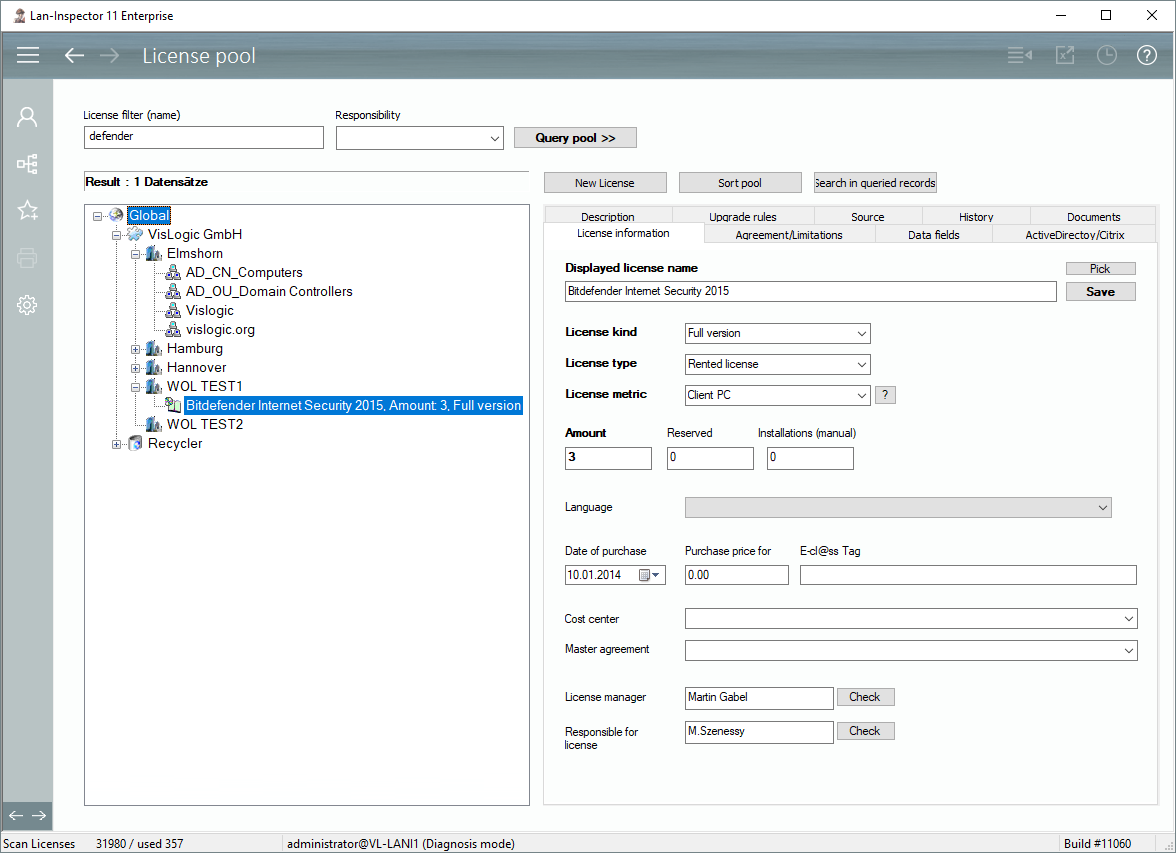
After you have already scanned your network, and after there is software data in your data base, you can advance into the license pool by selecting “License + Software Management/License Pool”. You enter all licenses you have in your company into the license pool. Whatever exists on paper or from your accounting, you can keep a record in the pool for it.
To display available licenses, you have to query the pool first. You can directly click on “Get Pool >>“ or use the filter field for this query before.
The following sections describe the process of creating and editing a license record. The pool displays the tree of locations, where the licenses can be associated with available groups or sub-groups.
If you select a license in the tree, you will see the complete license record on the right side spread over several tab dialogs. If you select a group that has licenses as child items, the list of associated licenses will appear on the right side. You can multi-select items and drag them to other branches of the location tree if necessary.
The license pool is supposed to map your real purchases of licenses. If you have a complete sum of 100 Office licenses, consisting of two purchases of licenses, one with 20 and one with 80 licenses, you should enter two license records correspondingly. This method helps getting most of your real license situation by using upgrades, downgrades mixed with normal license usage and other possible clues. In license balances, you have a very transparent view on how the numbers are explained.